web analytics
  1. Home
  2. Knowledge Base
  3. Getting Started With CARMIS
  4. How to Correct CARMIS Setup on Your Computer

How to Correct CARMIS Setup on Your Computer

This article explains how to correct your CARMIS setup if you are seeing another user’s name when logging into CARMIS. This usually happens if different login credentials were used in the Parallels connection when doing the initial setup.

You should use this article if you are trying to log in to CARMIS and notice that the displayed username is not yours, if the computer was previously used by another CARMIS user, or if CARMIS was already installed on the device using Parallels.

By following the steps below, you will delete the existing connection and correctly set up a new one for your account.


How to Navigate and Delete the Existing Connection

Step 1: Open Parallels Client on your computer.
Image
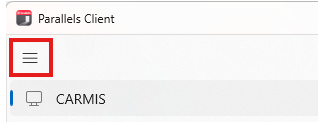
Step 2: Click on the Hamburger icon to get the list of existing connections.
Image
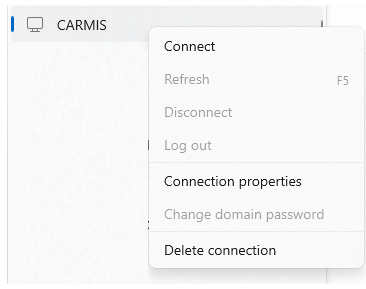
Step 3: Right-click on the existing CARMIS connection.
Image
Step 4: Click on Delete connection from the available options to remove this connection.
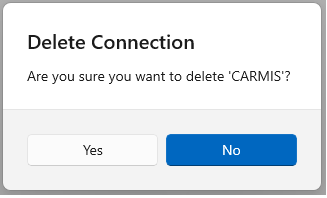
Step 5: Click on “Yes”, to confirm the deletion.
Image

How to Add a New Connection

After deleting the existing connection, you will need to create a new one using the correct setup process.

Step 1: Follow the steps outlined in the below section of this Article: Existing Parallels User, New to CARMIS
Step 2: Complete the setup using your own CARMIS credentials.
Step 3: Launch CARMIS and confirm that your name appears correctly on login screen.
Was this article helpful?

Need Support?

Can't find the answer you're looking for?
Contact Support