
The Sidebar is your main navigation hub, giving you quick and easy access to the tools and features you use every day. Designed to help you move efficiently through the system, the sidebar allows you to manage clients, programs, events, communications, and more, all from one convenient location. This article provides an overview of the sidebar and explains how each section helps you navigate CARMIS with confidence and ease.
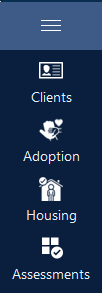
The Sidebar is the blue navigation panel on the left side of CARMIS. It provides quick access to CARMIS modules, forms, reports, and other areas of the system.
Important Note: The options displayed in the Sidebar are based on the user’s level of permission. For example, some users may not see certain modules such as Admin, Reports, or iCARE.
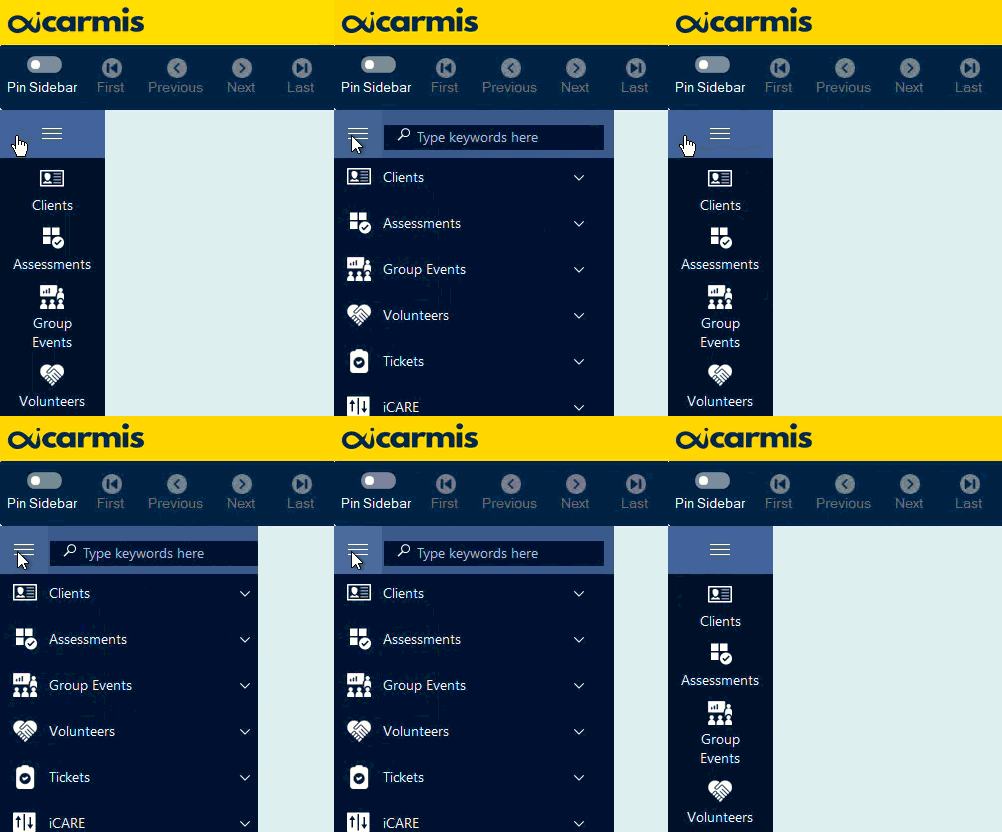
Searching from the Sidebar
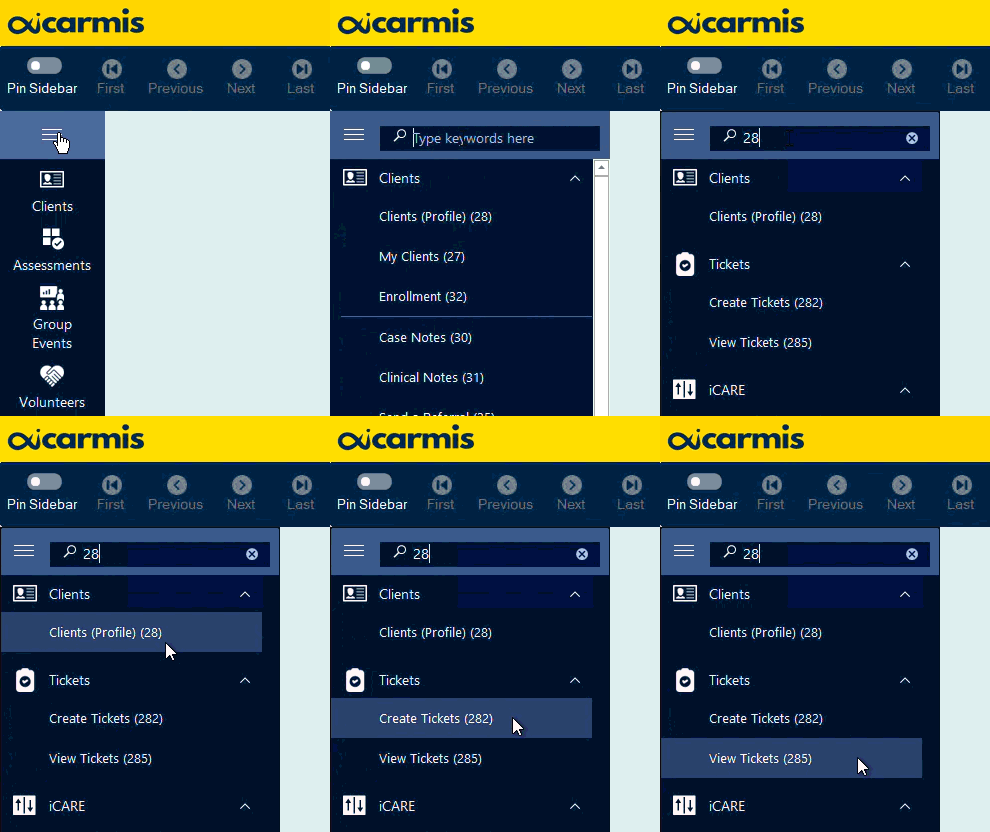
The Sidebar includes a search box at the top that allows users to quickly find forms by typing keywords.
For example, typing case will display matching forms such as:
- Case Notes (30)
- Employer Case Notes (560)
- Event Case Notes (General / non-client) (206)
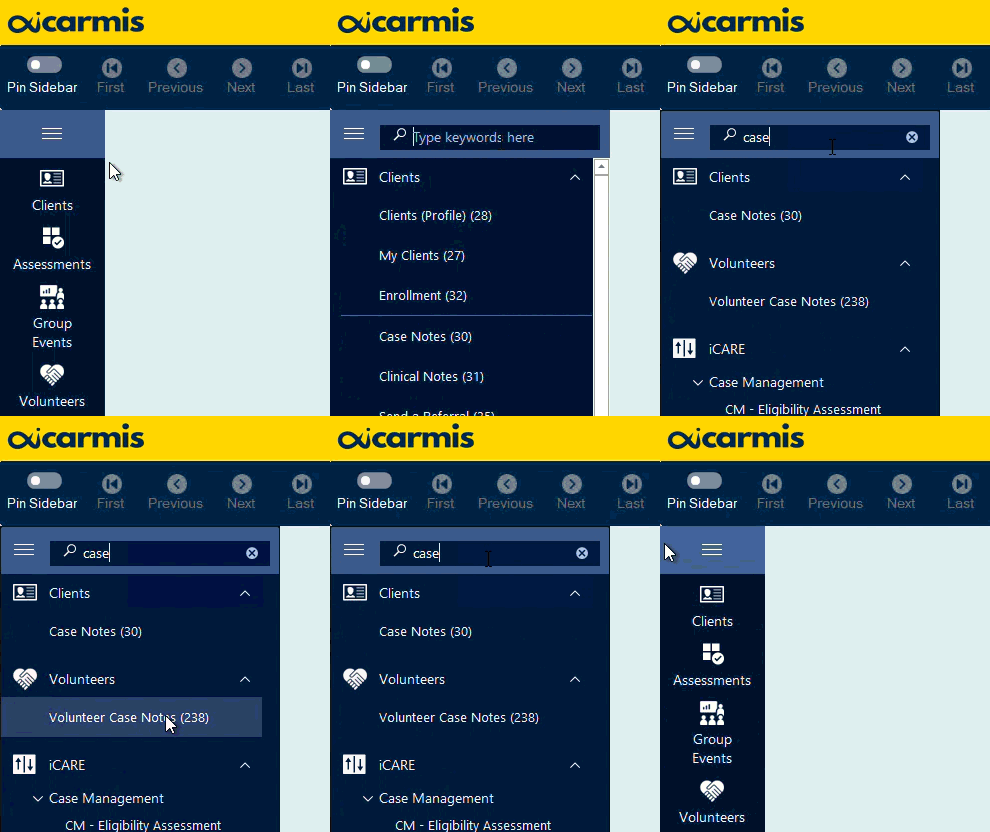
After searching, the Sidebar will continue to show the matching results until the search is cleared. To clear the search, click the X icon in the search box.
Searching by Form Number
Users can also search by form number. Each form in CARMIS has a unique form number.
For example, typing 910 will show the matching form:
Clients - Enrolled in a Program (910)
This allows users to quickly open a form without manually expanding each menu section.
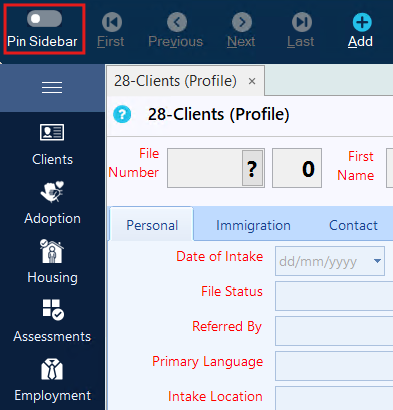
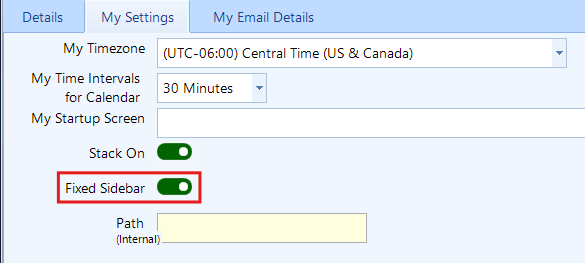
Toggling the button off will unpin the sidebar:
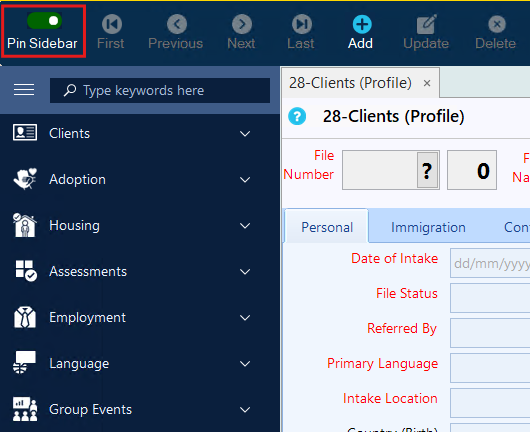
You can also manage this setting under 'Profile > My Settings'. Both toggle options are synced, so updating it in one place will automatically update it in the other.