

How to add conditional coloring to a report
Step 1: In CARMIS open any report you would like to apply conditional coloring too. For this example we will use 904-Online Intake Request/Inquires.
Step 2: Once your report is generated, add any filters as needed and show data on the report. For more info on filtering reports in CARMIS, please see our article: How to filter reports
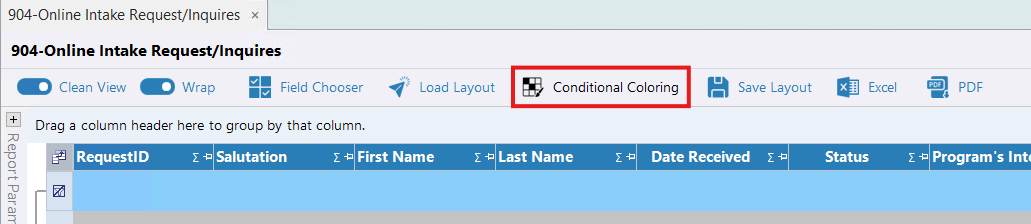
Step 3: To add conditional coloring, from the top toolstrip, click 'Conditional Coloring'
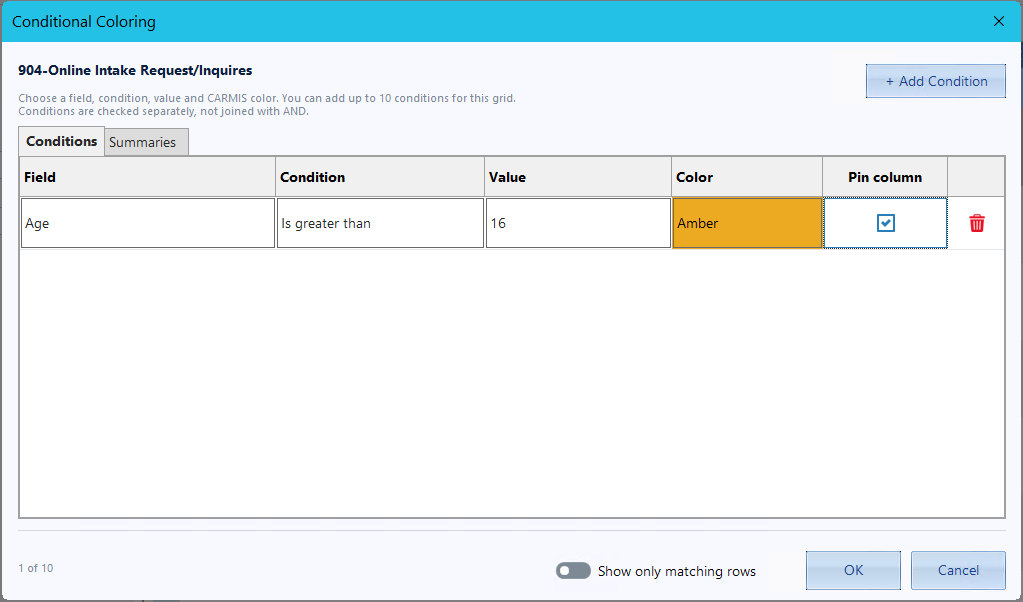
Step 4: Once clicked a popup window will open where you can set up the conditional color filtering.
Field: Select the report field you want to apply the condition to.
Condition: Select the condition you want to use, such as Less Than, Greater Than, etc.
Value: Enter or select the value that the condition should be compared against.
Color: Select the color you want to display when the condition is met.
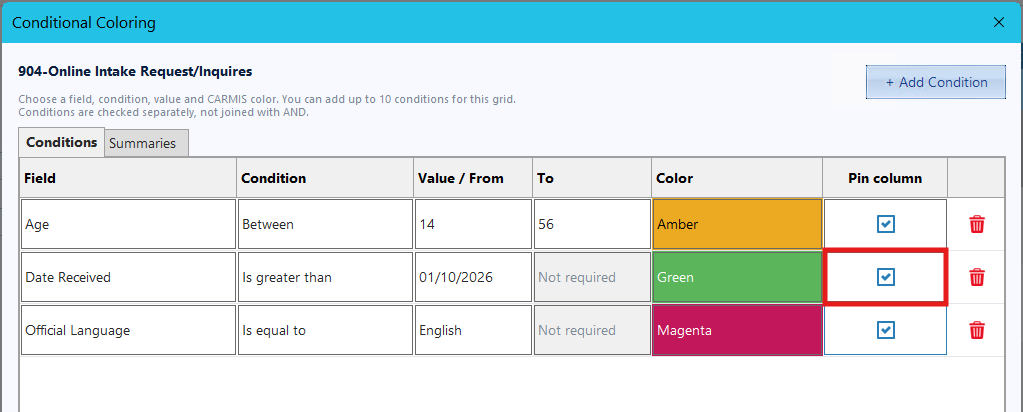
Pin column: Check this box to pin the column so it appears on the far left side of the report.

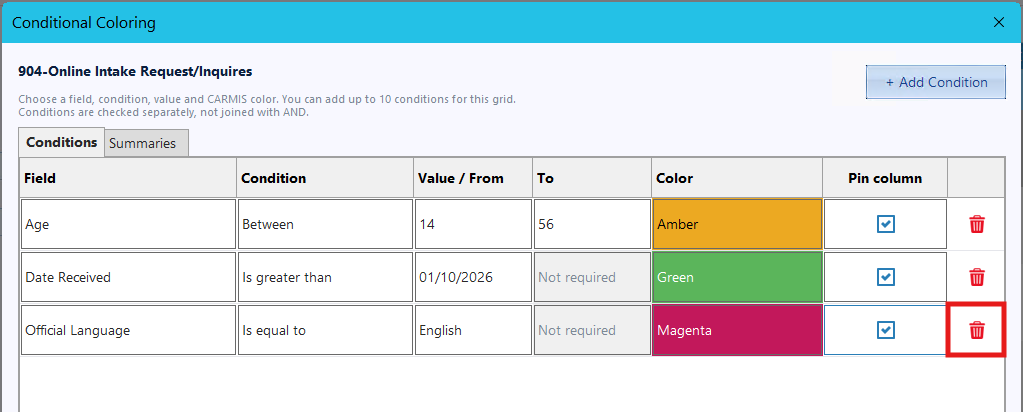
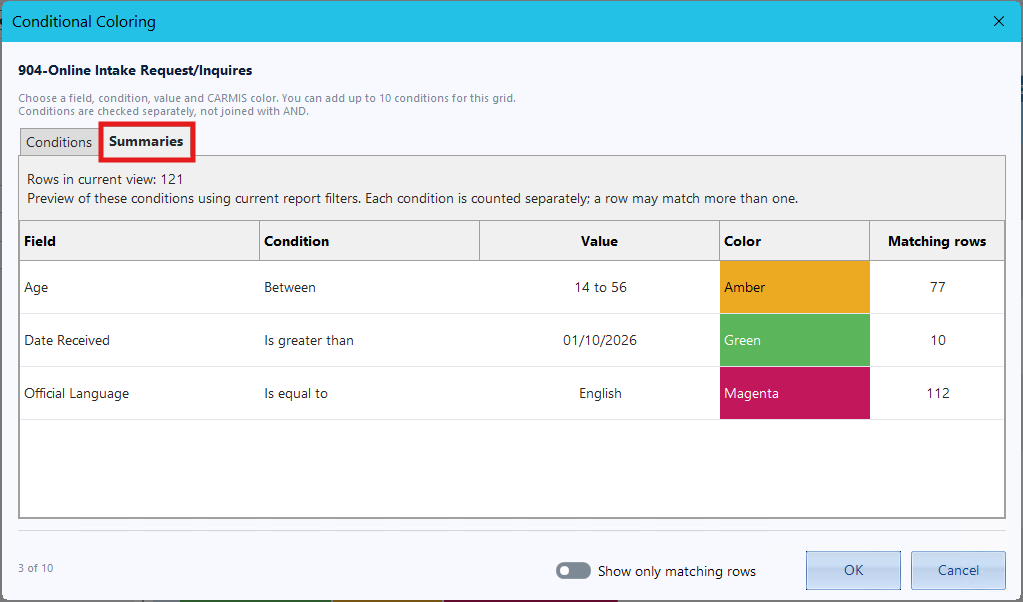
Step 8: The 'Summaries' tab allows you to view a summary of all the conditions you have added and the number of report rows matching each condition.
Rows in current view: Displays the total number of rows in the report based on the current report filters.
Field: Displays the field selected for the condition.
Condition: Displays the condition applied to the field.
Value: Displays the value used for the condition.
Color: Displays the selected color for the condition.
Matching rows: Displays the number of report rows that match each condition.
Each condition is counted separately, and a row may match more than one condition.

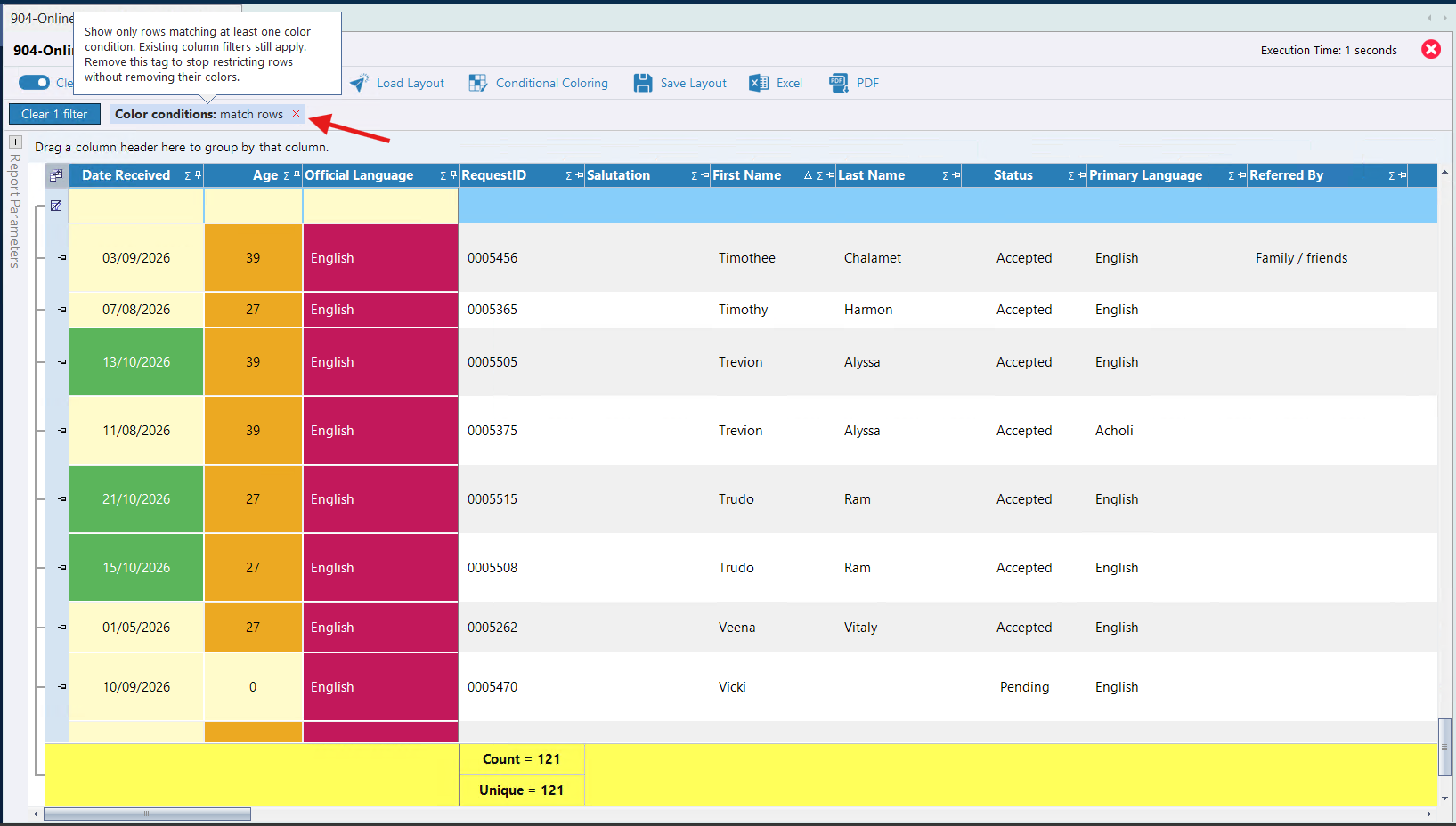
Saving Layouts with Conditional Coloring
Step 1: Once you have conditional coloring set on your report, you can save this layout for repeated use. Open your report with conditional coloring.
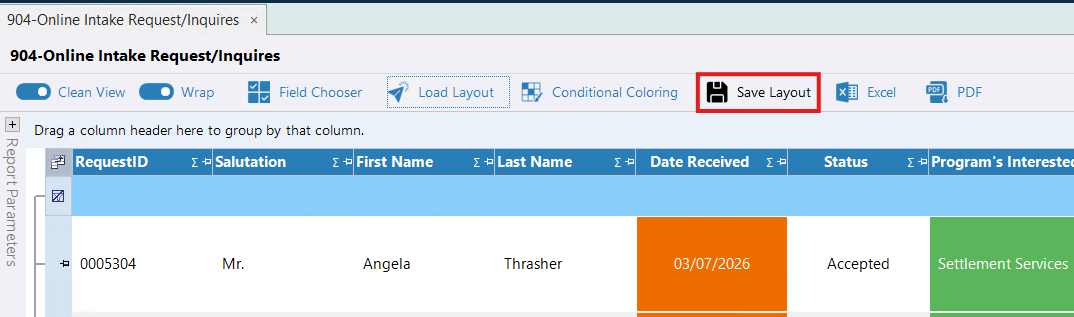
Step 2: Once your report is generated, click 'Save Layout'. Clicking this will open a pop-up window:
Step 3: In the window:
-
- Layout Name: Add a name for your layout.
- Set as My Default Layout (Optional): Toggling this button will make it the default layout when you open the report.
- Description (Optional): Add a description for your layout.
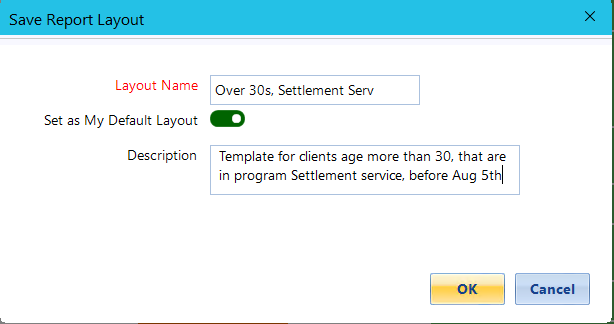
Step 4: Once you have added the information, click 'Ok' to save the new layout.
Step 5: Using the top toolstrip you can manage and load the layout using the 'Load Layout' button.

Q: How many conditions can I add?
A: You can add up to 10 conditions with coloring.
Q: What do automatic summaries show?
A: The Summaries tab shows the total rows in your current filtered report and the number of rows matching each condition.
Q: Why can the matching-row counts add up to more than the report total?
A: A row can match more than one condition, and each condition is counted separately. Adding these counts together may count the same row more than once.
Q: Does “Show only matching rows” require every condition to match?
A: No. It displays rows that match any one of your configured conditions.
Q: Can I save my color settings for future use?
A: Yes. Use Save Layout to save your setup, then select it through Load Layout when needed. You can also choose Set as My Default Layout when saving.
Q: Can I keep important columns visible while reviewing a report?
A: Yes. Select Pin column beside a condition to keep that column on the far left of the report. Uncheck it to unpin the column.
Q: Can I use conditional coloring with report filters?
A: Yes. Apply your report filters before setting up conditional coloring. The total shown under Rows in current view reflects your current report filters.