

Sending a Referral
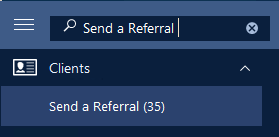
Step 1: Using the search option in CARMIS, search for Send a Referral (35) and open the form.
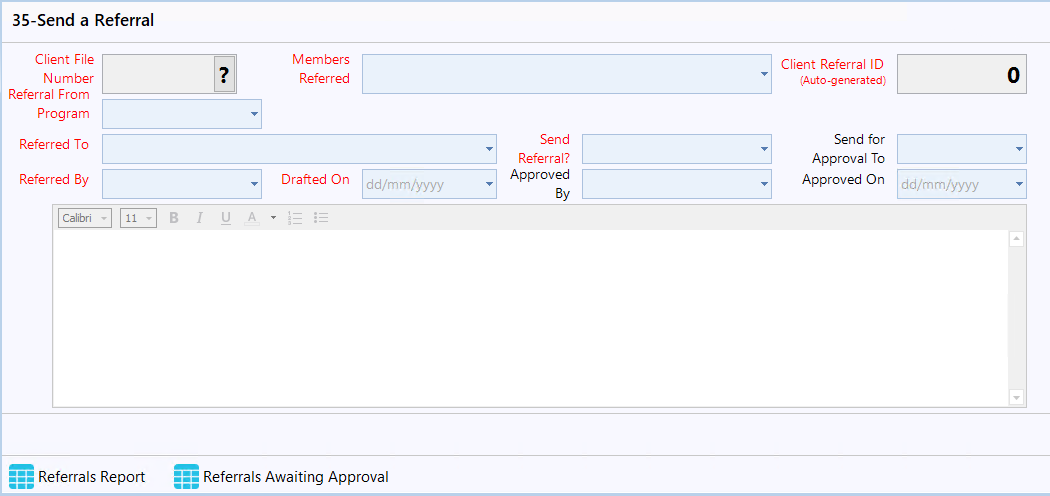
This will open the Send a Referral form shown below.
Step 2: Enter add mode by clicking 'Add' from the toolbar.
Once in 'Add' mode, search for the client you would like to refer. Once searched, fill out the mandatory fields:
- Referral From Program:
- Select the program the client is being referred from.
- If you select a program which is funded by iCARE, then additional fields will appear.
- Send Referral in iCARE: If the program you have selected is mapped to be iCARE funded, then this field will appear. If this referral needs to be sent to iCARE, select 'Yes' from the dropdown.
- If Yes has been selected then a new field will show, "Activity". From the dropdown, select the activity.
- Send Referral in iCARE: If the program you have selected is mapped to be iCARE funded, then this field will appear. If this referral needs to be sent to iCARE, select 'Yes' from the dropdown.
- Referred To: Select the option(s) indicating where you are referring the client.
- Send Referral?: Select the option based on your organization’s workflow.
- Yes, send the referral: Select the option to send the referral immediately if no approval is required.
- No, draft only / for approval: Select the option to send the referral for approval if the referral needs to be reviewed by a manager before it is sent.
- Send for Approval To: Select the manager or staff member who needs to approve the referral.
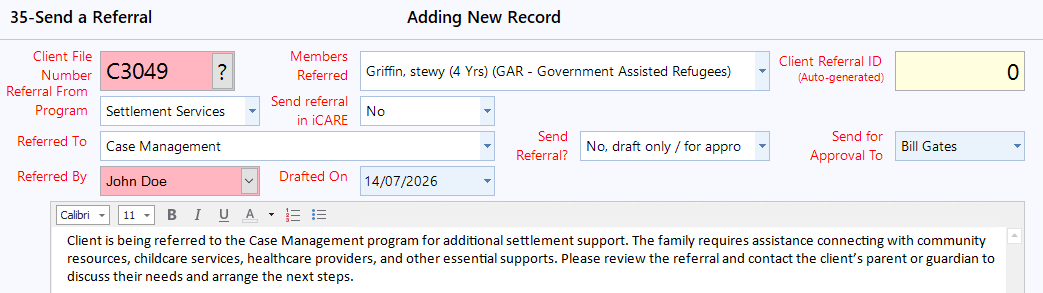
Step 3: Enter the referral details in the text field. Use this section to include any important information that should be sent with the referral. Once the information has been entered and reviewed, click Save.

Automated Email Notifications:
Pre-Requisites: It is recommended that the user have their email authorized in CARMIS in order to send automated email notifications, to learn more please check out our article: How to authorize your email account to send emails from CARMIS
-
- Once the referral is saved, if the 'Send Referral?' field is set to “No, Draft Only / For Approval,” then the user selected in the 'Send for Approval To' field will receive an email notifying them that the referral requires their approval.
- If the 'Send Referral?' field is set to “Yes, Send the Referral”, emails will be sent to the selected 'Referred To' and 'Referred By' counsellors.
How to Approval a Referral
If a referral was submitted for approval, the assigned approver can review and approve it from the referral report.
Step 1: Open 35 - Send a Referral Form using the sidebar.
Step 2: From the bottom toolstrip, click 'Referrals Awaiting Approval' button. This will open the referral report.

In the report you can filter the report. use To Employee field and select your name. Then click Show Report.
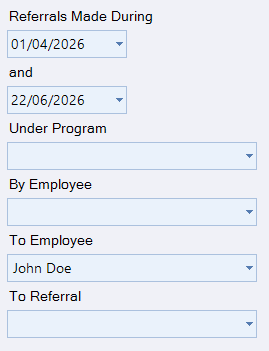
The report will generate and two tabs will be created, 'Approved Referrals' and 'Pending Referrals'. By default, Approved referrals tab will be open first.
 icon to view the pending referral.
Step 4: Once you are ready to approve the referral, navigate to Send Referral field and change the selection to 'Yes, Send the Referral'. Then click Save.
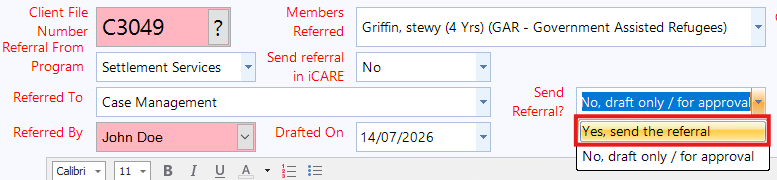
Once saved, CARMIS will send the referral and trigger the required email notifications.
Two Automated Email Notifications will be sent:
Pre-Requisites: It is recommended that the user have their email authorized in CARMIS in order to send automated email notifications, to learn more please check out our article: How to authorize your email account to send emails from CARMIS
-
- The referral email will be sent to the 'Referred To' staff
- A confirmation email will be sent to the staff member who originally created the referral, letting them know that the referral was approved and sent.
Frequently Asked Questions (FAQ)
Q: Can I send a referral without manager approval?
A: Yes, if your workflow does not require approval of a manager, then you can choose the option to send the referral immediately.
Q: When should I select the approval option?
A: Select the approval option if your organization requires a manager or another staff member to review the referral before it is sent.
Q: Who receives the referral email?
A: The staff member assigned to the referral will receive the referral email. To review or update the email address linked to an option in the 'Referred To' dropdown field, please refer to our article: How to Manage Referral Partners in CARMIS (Refer to)
Q: How will I know if my referral was approved?
A: Once the referral is approved and sent, the staff member who created the referral will receive a email notification confirming that the referral was approved and sent.
Q: Where can approvers find referrals waiting for approval?
A: Approvers can open the Referral Report, filter by the To Employee field and select their name to view pending referrals awaiting approval.
Q: Where is the referral available for future references?
A: You can view the referral available in Case Notes or you can view all approved referrals in the referral report, ensure selecting the 'Approved Referrals' tab. Please see an example below for case notes:

Q: Why am I not seeing the referral which was already approved?
A: The reason you are not seeing the referral is due to the security permissions given to your account.