
Differences Between User Tags and System Tags
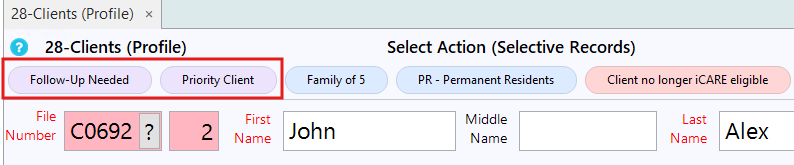
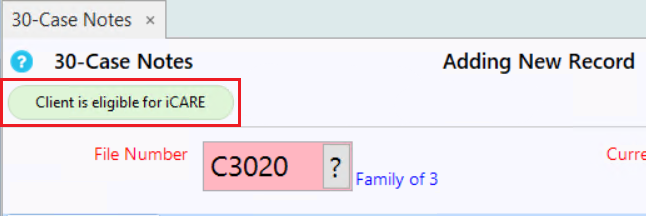
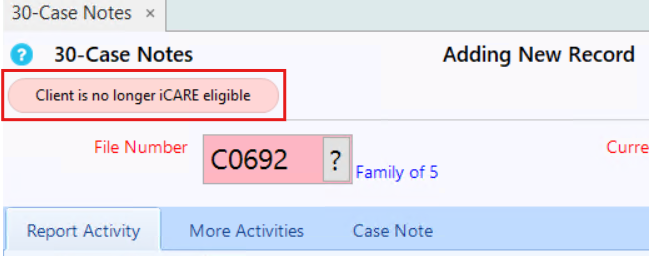
System Tags: System tags are system-generated tags automatically added by CARMIS. These tags are based on conditions/logics in the system, users cannot manually create/edit these tags nor can they remove them. The system tags colors will have a different color compared to User created tags.
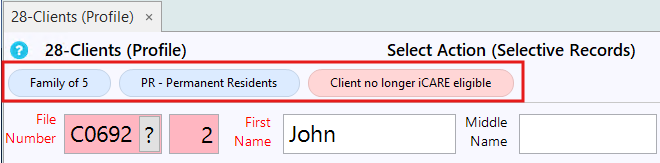
How To Add User Tags
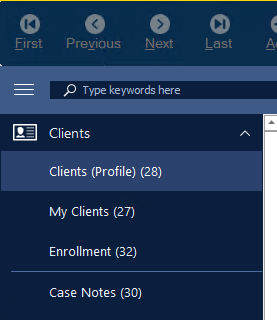
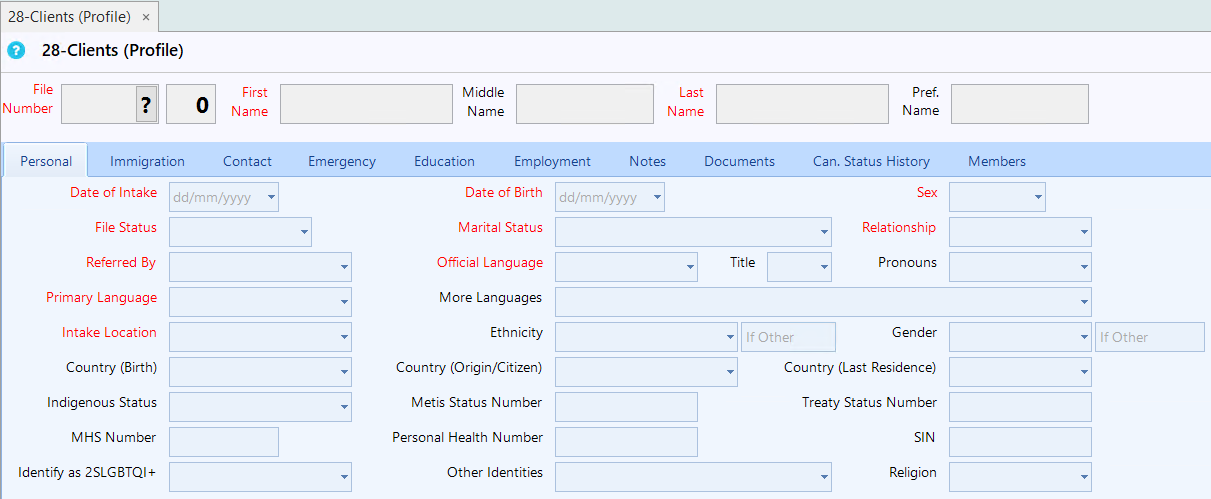
This will open the Client Profile form shown below.
Step 2: Click on the 'Search' button in the top toolbar and search for a client.
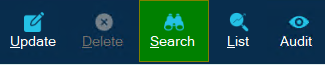
Step 3: Once you have your client selected, click on the 'Update' button from the top toolbar and enter update mode.

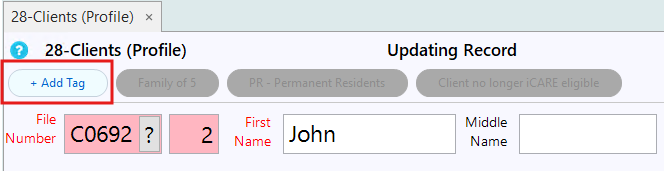
Step 4: Once in update mode, you will see a new button appear in Client Profile (28). Click on the '+ Add Tag' button.
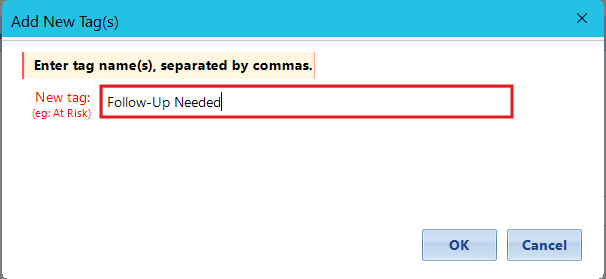
Step 6: Once tag name added, click the 'Ok' button to add your newly created tag.
Step 7: Coming back to client profile, you will see your newly created tag at the top, ensure to click the 'Save' button at the bottom.
How To Remove User Tags
Step 2: Click on the 'Search' button in the top toolbar and search for a client.
Step 3: Once you have your client selected, click on the 'Update' button from the top toolbar and enter update mode.
Step 4: Once in update mode the created user tags will have an 'X' next to them, click on the 'X' to remove the tag. Please Note: You cannot remove system generated tags, hence why they are greyed out.


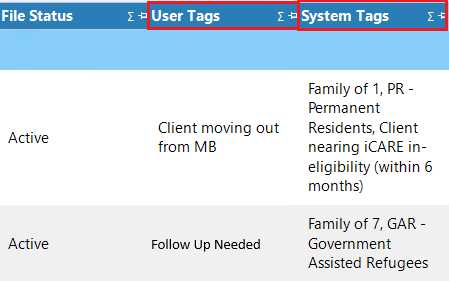
You can view both system generated and user created tags in reports. For example, in Report 905-Client Profile (Intake) or Report 906-Clients Profile (Active / Services Received) scrolling to the end of the report you will find both user and system tags columns.