

Creating a new Waitlist:
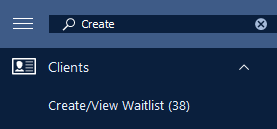
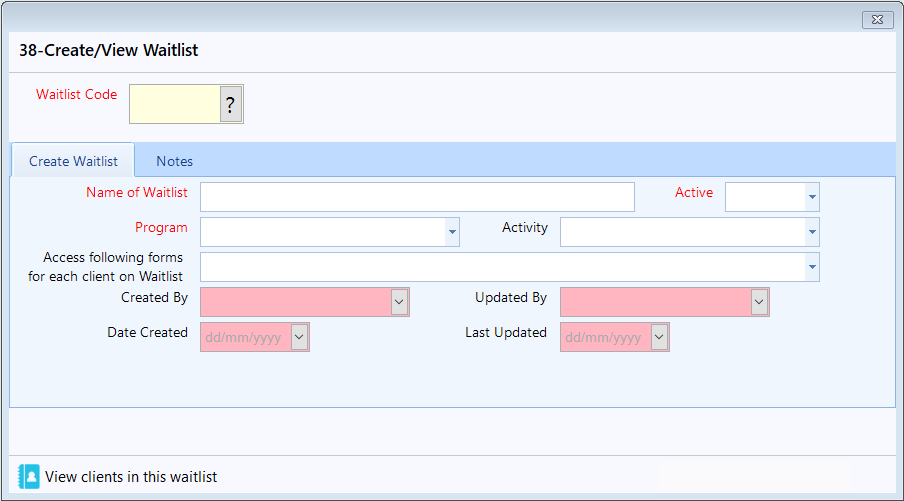
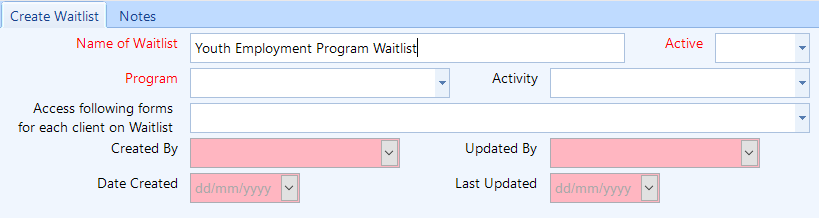
This will open the Create/View Waitlist form shown below.
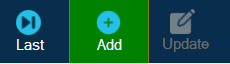
Step 2: Click on the "Add" button from the toolbar.
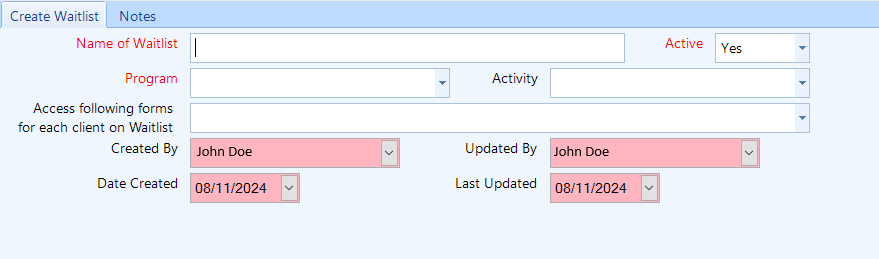
Step 3: Begin by entering all the necessary information for your waitlist.
-
Name of Waitlist: Enter a descriptive name for your waitlist to easily identify it later (e.g., "Youth Employment Program Waitlist").
-
Program: Use the dropdown menu to select the program associated with this waitlist. This helps in categorizing and filtering waitlists.
-
Activity: If the waitlist is tied to a specific activity within the program, select it from the dropdown. This is optional but useful for further categorization.
- Access Following Forms: This field specifies the forms that should be accessible for each client on this waitlist, which can help with organizing and managing the client workflow.
Step 4: Click on 'Notes' tab to enter notes for the waitlist.

Step 5: Once all information has been filled, click on the 'Save' button to save the information.

Searching a Waitlist:
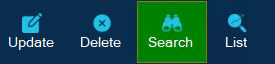
Step 2: Click on the 'Search' button from the toolbar.
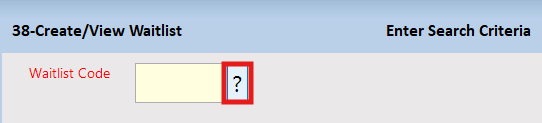
You can also search for a waitlist by using any of the fields in the form.
Step 4: Once you have selected a waitlist, click on the 'Search' button.

Updating a Waitlist:
Step 2: Search for a waitlist you would like to update.
Step 3: Once you have a selected a waitlist you would like to update, click on the 'Update' button from the toolbar.
Step 4: Make your desired changes to the waitlist.
Step 5: Once you have finished making your changes, click on the 'Save' button to save your changes.
Frequently Asked Questions (FAQ)
Q: Is there a way to track changes made to a waitlist?
A: Yes, CARMIS automatically tracks changes by populating the "Updated By" and "Last Updated" fields whenever modifications are made. These fields provide a record of the last user to make changes and the date those changes occurred.
Q: How do I mark a waitlist as inactive?
A: You can change the "Active" dropdown to "No" if you wish to mark a waitlist as inactive. This helps keep your waitlists organized by allowing you to filter out ones that are no longer in use.