

This article explains how to fix a common situation where your keyboard is set to a different language when entering your password on the CARMIS login screen.
Section:Overview
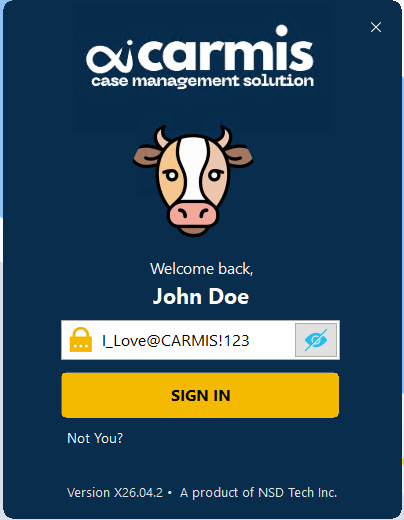
The example below shows what happens when a password is entered using a keyboard set to the wrong language during sign-in.
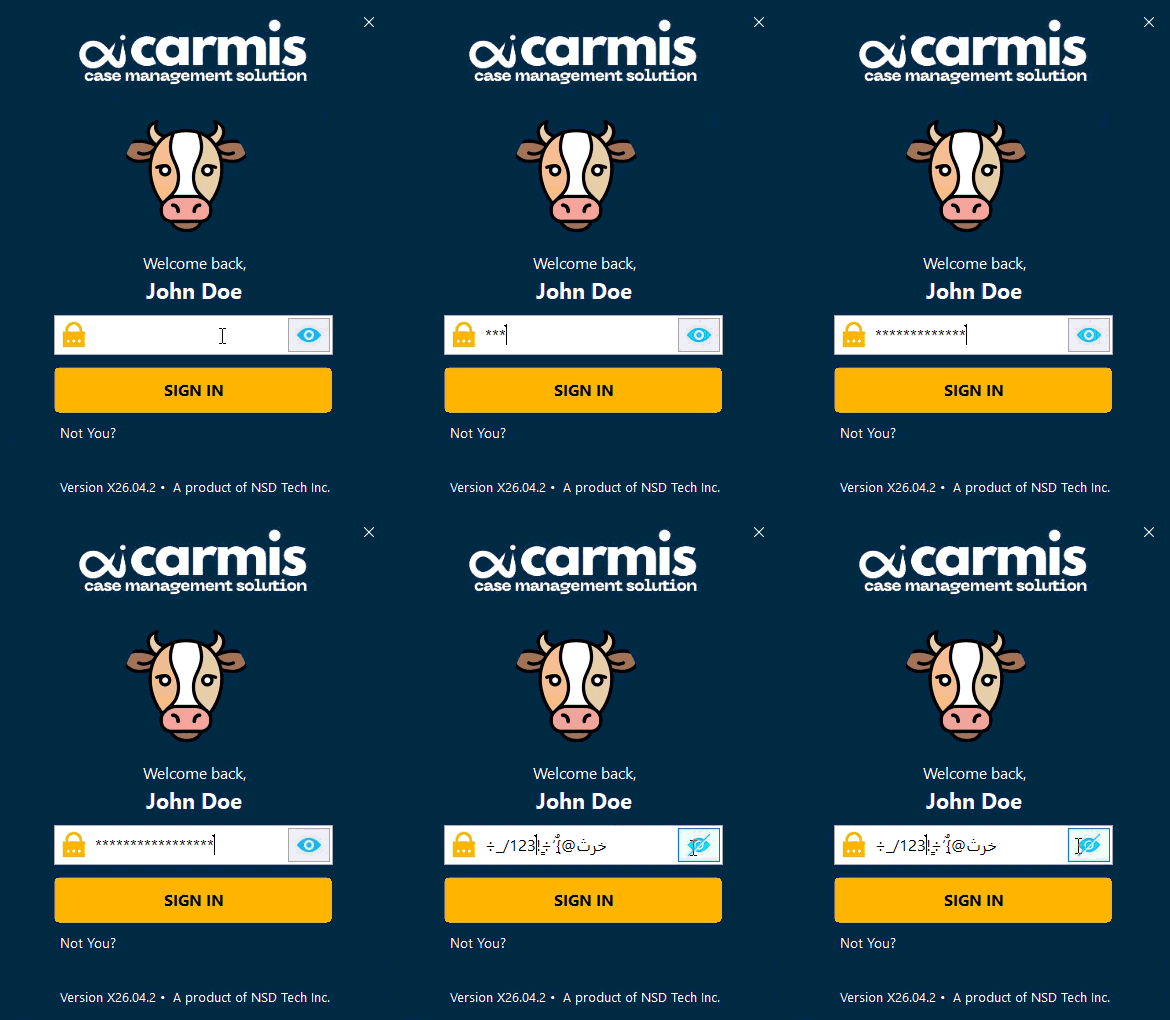
Fixing Keyboard Layout Types
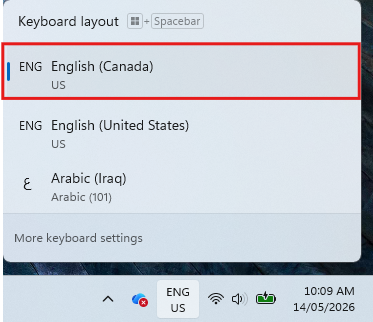
Step 1: On a Windows computer, select English (Canada) from the keyboard language options on the right side of the taskbar.
Step 2: If you are currently logged into CARMIS, please logout first from all sessions.
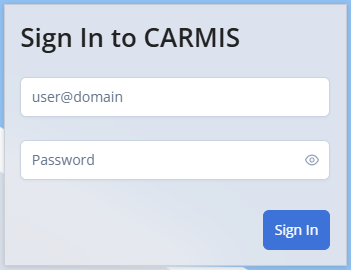
Step 3: Go to cloud.carmis.ca, enter your login credentials, and sign in.
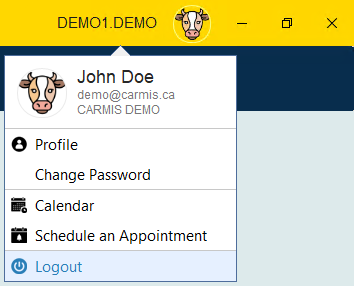
Step 4: Once you have signed in, from the top-right corner, click the user icon and select Sign out.
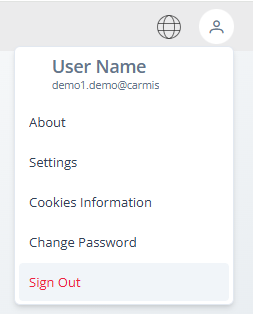
Step 5: Sign out, then sign back in to CARMIS using either the desktop app or cloud.carmis.ca. When you enter your password, it should now appear in English.
Frequently Asked Questions
Q: I'm already signed in to CARMIS, but I can't type in English.
A: First, change your keyboard to English (see Step 1). Then continue with Step 2 onwards.