
How To Add, Update and Search
- Select Add to start a new NAARS record for a client or family already registered in CARMIS.
- Select Update to edit any information on the record, if needed.
- Use Search when you need to review, edit, print, or duplicate on an existing NAARS.
- You can search by File Number, Client Name, or Date.
How to Select for Members (1 and 2)
- Member 1 (Principal Applicant) is always selected by default.
- Member 2 (and additional member, if applicable) can be selected to complete needs together.

Single Person:
- Only one column appears across the assessment tabs. All needs, indicators, and summary information apply to the selected individual. When only one member is selected, only the fields in the first column are displayed. The second column appears greyed out to indicate that no additional member was selected.
Family:
- Second member appears in a separate column across tabs such as Basic Needs, Language, Employment, Summary, etc.
- Information must be reviewed and completed for each family member individually, even when needs are similar.
Tabs in General
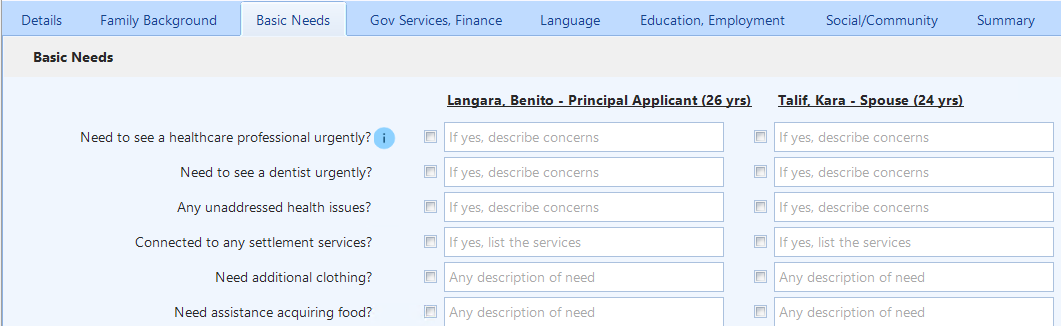
NAARS is organized into multiple tabs to guide the assessment process:
- Details – Assessment mode, office, supports provided, time spent, and service language.
- Family Background – Basic family and settlement context.
- Basic Needs – Immediate and essential needs.
- Gov Services, Finance – Government services and financial situation.
- Language – Language skills and needs.
- Education, Employment – Education background and employment readiness.
- Social/Community – Community connections and supports.
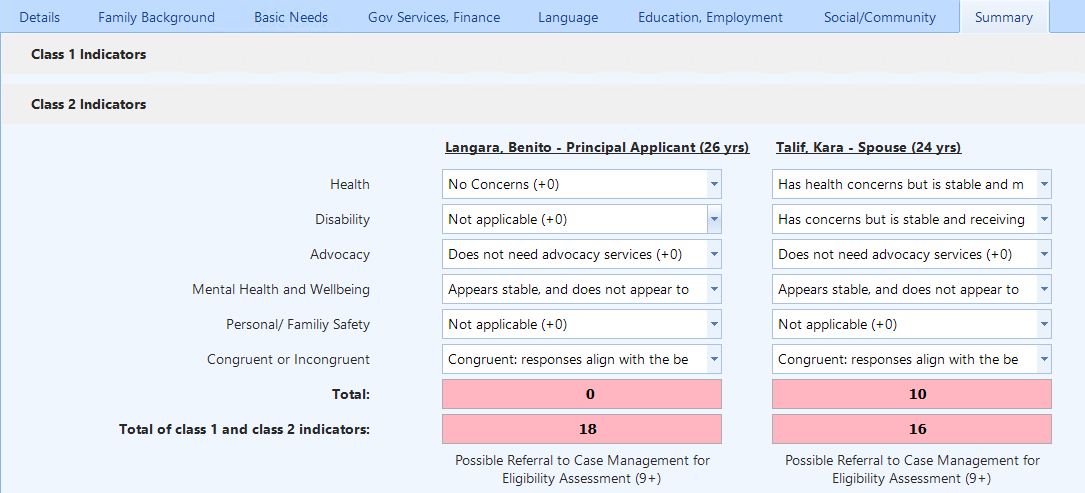
- Summary – Class 1 and Class 2 indicators (auto-calculated totals)
Key points:
- Tabs remain consistent whether the file is single or family-based.
- Fields with an info icon (ℹ️) provide additional guidance.
Check box: By selecting the checkbox, the field is marked as a visual indicator of a need. The neighboring field provides the option to enter additional information.

Summary - Indicators:
This tool helps determine whether a client should be referred for a Case Management eligibility assessment or directed to Well‑Being Navigation.
Clients who receive a total score of 9 or higher based on Class 1 and Class 2 Indicators should be considered for referral to Case Management.
Please note: Settlement workers should use their judgment when deciding on a referral.
How to Print a PDF version
How To Duplicate an assessment
The Duplicate function allows you to create a new NAARS record using an existing one as a base.
- Useful for follow-up assessments or repeat service periods.
- Copied information can be edited as needed to reflect updated circumstances.
- Dates and assessment-specific details should always be reviewed after duplicating.
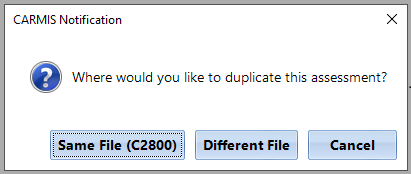
Step 2: Once clicked, a pop up will appear. It will ask if you would like to duplicate this assessment.
Same File: If you are doing a reassessment of the client, then select 'Same File (#FileNumber)'. This will copy all data entered into the new re-assessment record.
Different File: Clicking this button will copy the assessment to another client’s profile. After clicking 'Different File', select the new client by clicking the '?' icon next to the client selection field.
iCARE Bulk Uploads
How to run the NAARS for GARS report